Sentinels
As your agent generates code, wouldn’t it be useful to have something watching over its shoulder? A narrator explaining what’s happening, a cost tracker catching runaway spending, a QA reviewer checking code quality—all running in parallel without slowing down the main work.
That’s what sentinels do. They are parallel observers that watch the event stream from your hank and react to it by calling their own LLMs, writing to separate output files, and maintaining their own state. The main agent keeps working, unaware it’s being observed.
What is a sentinel?
A sentinel is a secondary agent that watches your main workflow’s event stream. When events match its trigger criteria, the sentinel fires—calling an LLM with the events it saw and writing the output to a specified location.
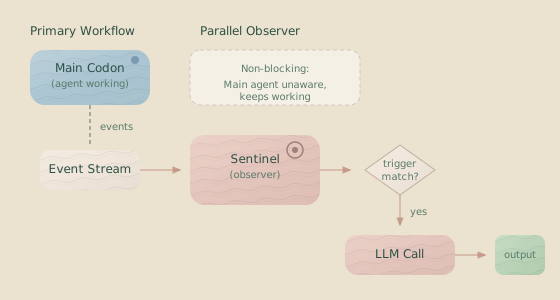
The main agent keeps working and doesn’t wait for sentinels. If a sentinel errors or takes too long, the main workflow continues unaffected. This separation means you can layer sophisticated monitoring and analysis on top of any codon without risking your core execution.
Key Insight: Sentinels are a full parallel execution framework, not just logging. They have their own LLM calls, their own conversation history, their own cost tracking, and can produce structured output validated against Zod schemas.
Sentinels are note-takers, not editors. A sentinel can:
- Make its own LLM calls (text or structured output)
- Write to its own output files (log files, last-value files)
- Maintain conversation history across triggers
A sentinel cannot:
- Run tools (shell, file edit, etc.)
- Send instructions back to the main agent
- Block or interrupt the main agent’s execution
Sentinel output files can be placed in the agent’s workspace (using path conventions), and you can make the main agent aware of them. But avoid having both the sentinel and the agent write to the same file — harnesses like Claude Code use file-hash checks for concurrent edit protection, and sentinel writes will cause “you haven’t read the new version yet” errors in the agent.
The recommended data flow is unidirectional: the main agent edits files X and Y → the sentinel watches and writes analysis to file A → the agent (or a later codon) reads file A. If you need a sentinel’s findings to influence execution, have the sentinel write to an output file and reference that file in a subsequent codon’s prompt or rig.
Why use sentinels?
Use sentinels for tasks that would otherwise complicate your main agent’s logic:
Narration: Generate human-readable summaries of agent activity—useful for monitoring long-running hanks or explaining agent behavior to stakeholders.
Cost Monitoring: Track token usage in real-time. Alert when spending exceeds thresholds and detect inefficient patterns before they drain your budget.
Error Detection: Watch for patterns like three consecutive failures or specific error types. Analyze root causes while the agent is still running, not after it has given up.
Code Review: Review generated code as it’s written, providing QA feedback in parallel rather than as a separate step after completion.
Data Extraction: Pull structured data from the event stream, such as tool call patterns, action categories, or searchable indexes.
Validation: Check generated artifacts against rules or schemas, catching issues early without blocking the main workflow.
When to use a sentinel vs a codon
Sentinels are best for checks that don’t need the full codebase to evaluate — things like code smells, convention violations, laziness detection, or drift from instructions. The behavior being guarded can be explained in simpler terms: “don’t use any”, “every function needs a docstring”, “stay on task.” Sentinels catch these in real-time while the agent works.
If the review needs deep context — understanding the architecture, reading related files, reasoning about trade-offs across the codebase — it’s better suited as a separate codon. A sentinel only sees the events it’s triggered by, not the full workspace. A codon gets the full agent harness with tools, file access, and its own context window.
Rule of thumb: If you can explain what to watch for in a paragraph, it’s a sentinel. If you need to show it the codebase, it’s a codon.
Sentinel configuration
Sentinels are configured as JSON files and attached to codons. Here’s a simple narrator sentinel:
{
  "id": "narrator",
  "name": "Activity Narrator",
  "description": "Provides human-readable summaries of agent activities",
  "model": "anthropic/claude-haiku-4-5",
  "trigger": {
    "type": "event",
    "on": ["assistant.action", "tool.result"]
  },
  "execution": {
    "strategy": "debounce",
    "milliseconds": 3000
  },
  "userPromptText": "Summarize the following agent activities:\n\n<%= JSON.stringify(it.events, null, 2) %>\n\nProvide a brief, clear summary of what happened.",
  "llmParams": {
    "temperature": 0.3,
    "maxOutputTokens": 4096
  }
}
Then, attach it to a codon:
{
  "hank": [
    {
      "id": "generate-code",
      "name": "Generate Code",
      "model": "sonnet",
      "continuationMode": "fresh",
      "promptText": "Generate a TypeScript API client...",
      "sentinels": [
        {
          "sentinelConfig": "./sentinels/narrator.sentinel.json"
        }
      ]
    }
  ]
}
Triggers
Triggers determine when a sentinel fires. They come in two types: event triggers that react to specific events, and sequence triggers that detect patterns across multiple events.
Event triggers
Event triggers fire when specific event types occur. You can match multiple event types and add conditions:
{
  "trigger": {
    "type": "event",
    "on": ["assistant.action", "tool.result"],
    "conditions": [
      {
        "operator": "equals",
        "path": "isError",
        "value": true
      }
    ]
  }
}
This trigger fires only on assistant.action or tool.result events where isError is true.
Event types you can listen to include:
| Event Type | Description |
|---|---|
assistant.action | Agent thinking, tool use, or messages |
tool.result | Results from tool executions |
file.updated | File created, modified, or deleted |
codon.started | Codon execution begins |
codon.completed | Codon execution ends |
token.usage | Token consumption updates |
error | Error events |
* | Wildcard—matches any event type |
Condition operators:
| Operator | Description | Example |
|---|---|---|
equals | Exact match | {"operator": "equals", "path": "isError", "value": true} |
notEquals | Not equal | {"operator": "notEquals", "path": "status", "value": "skipped"} |
in | Value is in an array | {"operator": "in", "path": "type", "value": ["error", "warning"]} |
notIn | Value is not in an array | {"operator": "notIn", "path": "tool", "value": ["bash"]} |
contains | String contains or array includes | {"operator": "contains", "path": "message", "value": "timeout"} |
matches | Regex match | {"operator": "matches", "path": "path", "value": "\\.ts$"} |
greaterThan | Numeric comparison | {"operator": "greaterThan", "path": "totalCost", "value": 0.5} |
lessThan | Numeric comparison | {"operator": "lessThan", "path": "duration", "value": 100} |
All conditions must be met for the trigger to fire (AND logic). You can use dot notation for nested paths (e.g., "path": "exitStatus.type") to access nested data within an event.
Sequence triggers
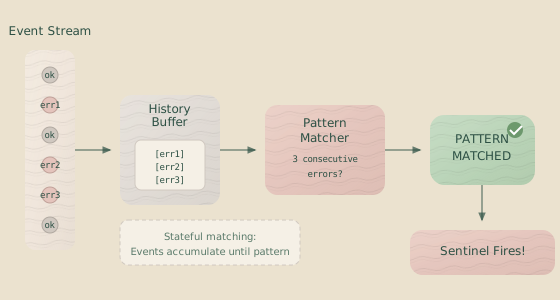
While event triggers react to single events, sequence triggers detect patterns across multiple events. They are stateful, remembering what they’ve seen to find patterns that emerge over time:
{
  "id": "error-detector",
  "name": "Error Pattern Detector",
  "trigger": {
    "type": "sequence",
    "interestFilter": {
      "on": ["tool.result"]
    },
    "pattern": [
      {
        "type": "tool.result",
        "conditions": [
          { "operator": "equals", "path": "isError", "value": true }
        ]
      },
      {
        "type": "tool.result",
        "conditions": [
          { "operator": "equals", "path": "isError", "value": true }
        ]
      },
      {
        "type": "tool.result",
        "conditions": [
          { "operator": "equals", "path": "isError", "value": true }
        ]
      }
    ],
    "options": {
      "consecutive": true
    }
  },
  "execution": {
    "strategy": "immediate"
  },
  "model": "anthropic/claude-haiku-4-5",
  "userPromptText": "The agent encountered 3 consecutive errors. Analyze the pattern..."
}
This sentinel fires when three consecutive tool.result events have isError: true. The interestFilter defines which events the sentinel should track; pattern defines the sequence to detect within that history.
Consecutive vs non-consecutive: By default, pattern steps must occur back-to-back (consecutive: true). Set consecutive: false to allow other events between pattern steps, which is useful for finding “A followed eventually by B” rather than “A immediately followed by B.”
Pattern wildcards: Use "type": "*" in a pattern step to match any event type that passes your interestFilter.
History management: To prevent unbounded memory growth, sequence triggers maintain a history of up to 1000 relevant events.
Execution strategies
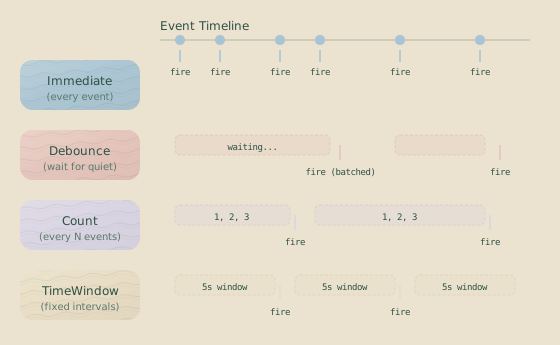
When a trigger fires, the execution strategy controls how and when the sentinel makes an LLM call.
Immediate
Fire on every trigger match. Best for critical alerts or when you need a real-time response.
{
  "execution": { "strategy": "immediate" }
}
Debounce
Wait for a quiet period, then fire with a batch of all accumulated events. Ideal for narration, where you want to summarize bursts of activity rather than every single event.
{
  "execution": {
    "strategy": "debounce",
    "milliseconds": 3000
  }
}
The sentinel collects matching events until 3 seconds have passed with no new events, then fires once with the entire batch.
Count
Execute after N matching events. Useful for batch processing.
{
  "execution": {
    "strategy": "count",
    "threshold": 10
  }
}
This sentinel fires every 10 matching events.
Time Window
Execute on a fixed schedule with all events from that period. Best for periodic summaries.
{
  "execution": {
    "strategy": "timeWindow",
    "milliseconds": 30000
  }
}
This sentinel fires every 30 seconds. The timer is not affected by how long an LLM call takes; it uses fixed intervals to prevent drift. If one execution runs long, the next window will fire on schedule.
Prompts and templates
Sentinel prompts use Eta , a JavaScript template engine. This gives you access to JavaScript expressions within your prompts. The template context is available as the it object:
{
  "userPromptText": "Summarize these events:\n\n<%= JSON.stringify(it.events, null, 2) %>"
}
Template context
| Property | Type | Description |
|---|---|---|
it.events | ServerEvent[] | Array of events that triggered this execution |
it.codon.id | string | Current codon ID |
it.codon.name | string | Current codon name |
it.codon.description | string? | Optional codon description |
it.codon.startTime | Date | When the codon started |
it.world.currentTime | Date | When the trigger was queued (not when executing) |
it.world.currentTime uses the trigger’s queue time, ensuring templates see when the trigger happened, even if execution is delayed.
Template examples
Iterate over events:
<% for (const event of it.events) { %>
- <%= event.type %>: <%= JSON.stringify(event.data) %>
<% } %>
Access specific event data:
Last file updated: <%= it.events[it.events.length - 1].data.path %>Use conditional logic:
<% if (it.events.length > 10) { %>
This was a busy period with <%= it.events.length %> events.
<% } %>
File-based prompts
For longer prompts, reference external files:
{
  "userPromptFile": "./prompts/narrator-prompt.md",
  "systemPromptFile": "./prompts/narrator-system.md"
}
You can also provide an array of files, which will be concatenated:
{
  "userPromptFile": ["./prompts/context.md", "./prompts/task.md"]
}
Conversational mode
By default, each sentinel execution is stateless. For sentinels that need to build on previous analysis, enable conversational mode to maintain a history.
{
  "id": "conversational-narrator",
  "name": "Conversational Narrator",
  "model": "anthropic/claude-haiku-4-5",
  "trigger": { "type": "event", "on": ["assistant.action", "tool.result"] },
  "execution": { "strategy": "debounce", "milliseconds": 500 },
  "conversational": {
    "trimmingStrategy": {
      "type": "maxTurns",
      "maxTurns": 5
    }
  },
  "systemPromptText": "You are a narrator that maintains context. Build on your previous summaries without repeating yourself.",
  "userPromptText": "Summarize these events: <%= JSON.stringify(it.events, null, 2) %>"
}
Conversational sentinels require a system prompt. You will get a
validation error if you enable conversational mode without systemPromptText
or systemPromptFile.
Trimming strategies
Without trimming, conversation history would grow indefinitely and eventually exceed the model’s context window. Trimming strategies keep the history bounded.
maxTurns: Keep the last N user/assistant message pairs.
{
  "trimmingStrategy": { "type": "maxTurns", "maxTurns": 5 }
}maxTokens: Keep the total tokens in the history below a limit.
{
  "trimmingStrategy": { "type": "maxTokens", "maxTokens": 4000 }
}
History persistence
Conversational history is saved to .hankweave/sentinels/history/{sentinel-id}-codon-{codon-id}.json. This allows sentinels to resume where they left off if the server restarts.
Error handling in conversations
The continueOnError flag controls behavior when an LLM call fails within a conversation:
{
  "conversational": {
    "trimmingStrategy": { "type": "maxTurns", "maxTurns": 5 },
    "continueOnError": true
  }
}
With continueOnError: true, failed LLM calls are logged, but the conversation history is preserved for the next successful call. If false, errors may cause the sentinel to unload after repeated failures.
Structured output
For tasks like classification or data extraction, you can instruct a sentinel to generate structured JSON output that is validated against a Zod schema.
{
  "id": "action-classifier",
  "name": "Action Classifier",
  "model": "anthropic/claude-haiku-4-5",
  "trigger": { "type": "event", "on": ["assistant.action"] },
  "execution": { "strategy": "immediate" },
  "userPromptText": "Classify this agent action: <%= JSON.stringify(it.events[0].data) %>",
  "structuredOutput": {
    "output": "object",
    "schemaStr": "z.object({ category: z.enum(['thinking', 'coding', 'debugging', 'testing']), confidence: z.number().min(0).max(1), reasoning: z.string() })",
    "schemaName": "ActionClassification",
    "schemaDescription": "Classification of an agent action"
  }
}
Output modes
| Mode | Description | Schema Required |
|---|---|---|
object | Generate a single JSON object | Zod object schema |
array | Generate an array of objects | Zod array schema |
enum | Generate one value from a list | enumValues array |
Enum mode example:
{
  "structuredOutput": {
    "output": "enum",
    "enumValues": ["urgent", "normal", "low-priority", "ignore"]
  }
}
Schema sources
Provide schemas as an inline string or from a file.
Inline schema:
{
  "structuredOutput": {
    "output": "object",
    "schemaStr": "z.object({ score: z.number(), notes: z.string() })"
  }
}
Schema from file:
{
  "structuredOutput": {
    "output": "object",
    "schemaFile": "./schemas/classification.schema.ts"
  }
}
Schema files should export the Zod schema as a default expression (e.g., export default z.object(...)). The z object is automatically available.
Structured output requires a model that supports tool calling. If your model does not, the sentinel will fail to load.
Output files
Sentinel outputs are automatically saved to files. You can configure output paths in the sentinel’s configuration or override them when attaching the sentinel to a codon.
Direct output configuration
Configure output directly in the sentinel’s JSON file:
{
  "id": "narrator",
  "name": "Activity Narrator",
  "output": {
    "format": "text",
    "file": "narrator-output.md",
    "lastValueFile": "current-summary.md"
  }
}- file: An append-only log of all outputs (maps to
logFile). - lastValueFile: A file containing only the latest output, replaced on each new generation. Useful for dashboards, integrations, or the sentinel sweep pattern.
- format: Controls how text outputs are written.
"text"(default) writes plain text withjoinString."json"and"jsonl"wrap each output as a JSON line withtext,timestamp, andsentinelIdfields.
Codon-level output override
Override output paths when attaching the sentinel to a codon. Codon-level settings.outputPaths takes precedence over sentinel-level output.*:
{
  "sentinelConfig": "./sentinels/narrator.sentinel.json",
  "settings": {
    "outputPaths": {
      "logFile": "narrator-output.md",
      "lastValueFile": "current-summary.md"
    }
  }
}
Path conventions
- A filename with no slashes (e.g.,
narrator.md) is saved to the managed directory:.hankweave/sentinels/outputs/{sentinel-id}/{filename}. - A path with slashes (e.g.,
./analysis.logoroutputs/narrator.md) is resolved relative to the agent working directory (agentRoot/). This lets sentinels write outputs directly into the agent workspace alongside the files the agent is creating.
If you don’t specify paths, they are auto-generated.
Join string
For text output using logFile, the joinString separates appended entries.
{
  "joinString": "\n\n---\n\n"
}
This field supports common escape sequences (\n, \t, \r, \\). It is not used for structured output, which is always formatted as NDJSON (one JSON object per line).
LLM parameters
Configure LLM behavior for each sentinel individually.
{
  "model": "anthropic/claude-haiku-4-5",
  "llmParams": {
    "temperature": 0.3,
    "maxOutputTokens": 4096,
    "maxRetries": 3
  }
}| Parameter | Default | Description |
|---|---|---|
temperature | 0 | Randomness of the output (0.0–1.0). Default is 0 for deterministic output. |
maxOutputTokens | 8192 | Maximum tokens in the response. |
maxRetries | 2 | Retries on transient API failures. |
Error handling
Sentinels are designed to handle errors gracefully without disrupting the main agent.
Error categories
- Template errors: Syntax errors in prompts. These are fatal and will cause the sentinel to unload.
- Configuration errors: Invalid settings detected at load time. These prevent the sentinel from loading.
- Corruption errors: Invalid data in a conversational history file. Behavior respects the
continueOnErrorflag. - Resource errors: Network timeouts or API failures. These are typically transient, and the sentinel will retry.
Consecutive failure tracking
Non-conversational sentinels track consecutive LLM failures. After maxConsecutiveFailures (default: 3), the sentinel unloads to prevent wasting tokens on a recurring problem.
{
  "errorHandling": {
    "maxConsecutiveFailures": 5,
    "unloadOnFatalError": false
  }
}- maxConsecutiveFailures: Number of consecutive failures before unloading (default: 3).
- unloadOnFatalError: Whether to unload on a fatal error, such as a broken prompt template. The default is
true. Set tofalseduring development to keep the sentinel active for debugging even if it reports fatal errors.
Successful calls reset the consecutive failure counter.
Event reporting
Control which sentinel events are broadcast over the WebSocket stream.
{
  "reportToWebsocket": {
    "lifecycle": true,
    "errors": true,
    "outputs": true,
    "triggers": false
  }
}| Event Type | Default | Description |
|---|---|---|
lifecycle | ON | sentinel.loaded, sentinel.unloaded |
errors | ON | sentinel.error |
outputs | ON | sentinel.output (includes content) |
triggers | OFF | sentinel.triggered (can be very verbose) |
Execution model
Understanding when sentinels run relative to the main agent is important for designing triggers and reasoning about timing.
During codon execution: non-blocking
While the main agent is running, events are routed to sentinels using a fire-and-forget pattern. The agent never waits for a sentinel to finish processing. If a sentinel’s LLM call takes 10 seconds, the agent continues working unimpeded. Sentinel triggers queue up and process serially within each sentinel, but this queue is invisible to the main agent.
At codon boundaries: blocking
When the agent finishes its work (process exits), the runtime enters a completing-sentinels phase before moving to the next codon:
- The agent process exits.
- The codon transitions to
completing-sentinelsstate. - All sentinel queues are drained — pending debounce timers fire, count buffers flush, time window events process. The runtime waits for all queued LLM calls to finish.
- The
codon.completedevent is emitted. - Sentinel queues drain again — any sentinels watching
codon.completedprocess the event. - Final sentinel states and costs are captured.
- A checkpoint is created and the codon transitions to its final state.
- Sentinels are unloaded; the next codon begins.
This means a sentinel watching codon.completed will reliably fire and complete before the next codon starts. However, the cost reported in the codon.completed event itself won’t include the sentinel work triggered by that event (since the event is emitted before the second drain).
Event routing
Not all events reach sentinels. The runtime routes events based on their category:
| Category | Examples | Routed to sentinels? |
|---|---|---|
| Server State | codon.started, codon.completed, token.usage, error | Yes |
| Agentic Backbone | assistant.action, tool.result, file.updated | Yes |
| Sentinel | sentinel.output, sentinel.triggered, sentinel.error | No |
| Connection | server.ready, pong | No |
Sentinel events are intentionally excluded to prevent self-observation loops. If sentinel A produces output, that sentinel.output event is journaled and broadcast to WebSocket clients, but it will not trigger sentinel B (or sentinel A itself).
Practical implication: You cannot create a sentinel that triggers on another sentinel’s output. If you need that pattern, have sentinel A write to an output file and have a subsequent codon read it.
Sentinel lifecycle
Understanding the sentinel lifecycle helps with debugging and design.
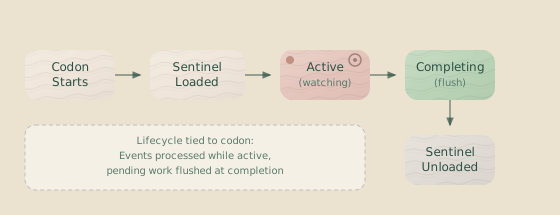
- Loaded: When a codon starts, its sentinels are created, validated, and health-checked against their configured LLM providers.
- Active: During codon execution, sentinels process matching events in the background (fire-and-forget).
- Completing: When the agent finishes, the runtime drains all sentinel queues. Buffered events (from debounce, count, or timeWindow strategies) are flushed and processed. After the
codon.completedevent is emitted, a second drain processes any sentinels watching that event. - Unloaded: The sentinel is destroyed, its final costs are captured, and a
sentinel.unloadedevent is emitted.
Each codon has its own independent set of sentinels. When execution moves to the next codon, the previous codon’s sentinels are unloaded before the new codon’s sentinels are loaded.
Cost tracking
Sentinels track their LLM costs separately from the main codon, so you can clearly distinguish between agent costs and monitoring costs. This information is available in sentinel.output and sentinel.unloaded events.
Common patterns
Copy these patterns as starting points for your own sentinels.
Narrator sentinel
Summarize agent activity in a human-readable format.
{
  "id": "narrator",
  "name": "Activity Narrator",
  "model": "anthropic/claude-haiku-4-5",
  "trigger": { "type": "event", "on": ["assistant.action", "tool.result"] },
  "execution": { "strategy": "debounce", "milliseconds": 3000 },
  "userPromptText": "Summarize what the agent just did:\n\n<%= JSON.stringify(it.events, null, 2) %>"
}
Cost alert sentinel
Catch runaway spending before it becomes a problem.
{
  "id": "cost-alert",
  "name": "Cost Alert",
  "model": "anthropic/claude-haiku-4-5",
  "trigger": {
    "type": "event",
    "on": ["token.usage"],
    "conditions": [
      { "operator": "greaterThan", "path": "totalCost", "value": 1.0 }
    ]
  },
  "execution": { "strategy": "immediate" },
  "userPromptText": "High cost alert! The agent has spent over $1.00. Analyze this spending pattern..."
}
Code review sentinel
Review TypeScript files as they’re written.
{
  "id": "qa-review",
  "name": "QA Review",
  "model": "anthropic/claude-haiku-4-5",
  "trigger": {
    "type": "event",
    "on": ["file.updated"],
    "conditions": [{ "operator": "matches", "path": "path", "value": "\\.ts$" }]
  },
  "execution": { "strategy": "debounce", "milliseconds": 10000 },
  "systemPromptText": "You are a senior developer reviewing code. Be concise and constructive.",
  "userPromptText": "Review these file changes:\n\n<% for (const e of it.events) { %>- <%= e.data.path %>\n<% } %>"
}
Periodic summary sentinel
Generate summaries on a fixed schedule, regardless of event volume.
{
  "id": "periodic-summary",
  "name": "30-Second Summary",
  "model": "anthropic/claude-haiku-4-5",
  "trigger": { "type": "event", "on": ["*"] },
  "execution": { "strategy": "timeWindow", "milliseconds": 30000 },
  "userPromptText": "Summarize all activity from the last 30 seconds..."
}
Sentinel-guided agent (unidirectional data flow)
A powerful pattern: have a sentinel write analysis to a file that the main agent reads. The key is keeping the data flow one-directional to avoid file conflicts.
Codon 1 — The main agent edits source files while a sentinel watches and writes a review to ./sentinel-notes/review.md:
{
  "id": "live-review",
  "name": "Live Code Review",
  "model": "anthropic/claude-haiku-4-5",
  "trigger": {
    "type": "event",
    "on": ["file.updated"],
    "conditions": [{ "operator": "matches", "path": "path", "value": "\\.ts$" }]
  },
  "execution": { "strategy": "debounce", "milliseconds": 10000 },
  "conversational": {
    "trimmingStrategy": { "type": "maxTurns", "maxTurns": 10 }
  },
  "systemPromptText": "You are a code reviewer. Maintain a running list of issues found. Be concise.",
  "userPromptText": "Review these changes:\n<% for (const e of it.events) { %>- <%= e.data.path %>\n<% } %>"
}
Attach with outputPaths pointing into the agent workspace:
{
  "sentinelConfig": "./sentinels/live-review.sentinel.json",
  "settings": {
    "outputPaths": {
      "lastValueFile": "./sentinel-notes/review.md"
    }
  }
}
Codon 2 — A follow-up codon reads the sentinel’s output and acts on it:
Read the code review in sentinel-notes/review.md.
Fix any issues marked as errors. Ignore info-level items.
This keeps the sentinel as a note-taker and the agent as the actor, with a clean codon boundary between observation and action.
Common mistakes
Avoid these frequent issues when configuring sentinels.
Don’t: Create a conversational sentinel without a system prompt.
{
  "conversational": { "trimmingStrategy": { "type": "maxTurns", "maxTurns": 5 } },
  "userPromptText": "..."
  // Missing systemPromptText or systemPromptFile!
}Instead: Always provide a system prompt to give the conversation context.
Don’t: Use joinString with structured output.
{
  "structuredOutput": { "output": "object", "schemaStr": "..." },
  "joinString": "\n---\n"  // Invalid!
}Instead: Remove joinString. Structured output always uses NDJSON format.
Don’t: Use a model that doesn’t support tool calling for structured output.
Instead: Use a model that supports structured output via tool calls, such as Anthropic’s Claude models.
Don’t: Create an immediate trigger for high-frequency events.
{
  "trigger": { "type": "event", "on": ["*"] },
  "execution": { "strategy": "immediate" }
}Instead: Use debounce or timeWindow strategies, or add conditions to filter the events.
Don’t: Point a sentinel’s output to a file the main agent is also editing.
Harnesses like Claude Code track file hashes to guard against concurrent edits. If a sentinel writes to a file the agent has read, the agent’s next edit to that file will fail with a hash mismatch (“you haven’t read the new version yet”), forcing a re-read and polluting the agent’s context window.
Instead: Keep data flow unidirectional. Sentinels write to their own files (e.g., sentinel-notes/review.md); the agent reads those files but never edits them. See the Sentinel-guided agent pattern for an example.
Attaching sentinels to codons
Attach sentinels to a codon using the sentinels array in your hank.json file.
{
  "id": "generate-code",
  "sentinels": [
    {
      "sentinelConfig": "./sentinels/narrator.sentinel.json"
    },
    {
      "sentinelConfig": "./sentinels/cost-tracker.sentinel.json",
      "settings": {
        "failCodonIfNotLoaded": true,
        "outputPaths": {
          "logFile": "costs.jsonl"
        }
      }
    }
  ]
}
Codon-level settings
| Setting | Default | Description |
|---|---|---|
failCodonIfNotLoaded | false | Fail the codon if this sentinel cannot be loaded. |
outputPaths.logFile | auto | Override the log file path for this sentinel instance. |
outputPaths.lastValueFile | none | Enable and set the path for the current-value file. |
reportToWebsocket | from config | Override the sentinel’s WebSocket reporting settings. |
Set failCodonIfNotLoaded: true for critical sentinels, like a cost monitor, to ensure you don’t run without observability.
Related pages
- Codons — The execution units that sentinels attach to
- Execution Flow — How sentinels fit into the broader lifecycle
- Debugging — How to debug sentinel issues
- Configuration Reference — Full configuration options
Next steps
Now that you understand sentinels, you can:
- Build one: Follow the Building a Hank tutorial.
- Go deeper: Read about Advanced Patterns for production use cases.
- Look up details: Consult the Sentinel Configuration Reference.